It looks like digiKam installed on a default GNOME environment has missing icons. For example, the "pick" icons (the little flags for Rejected/Pending/Accepted) are missing. The reason is that the default GNOME icon pack, Adwaita, is missing some of the icons used by digiKam.
The solution is to install the Breeze icon theme and then select it in digiKam:
$ sudo apt install breeze-icon-theme
and then in digiKam Settings -> Configure digiKam -> Miscellaneous -> Appearance -> Icon theme and select "Breeze". Actually, you can leave it as "Use Icon Theme From System" and it will use Adwaita and only fall back to Breeze for missing icons. However, I do find it more pleasant to have a consistent icon theme.
This short tutorial will guide you through encrypting a drive with cryptsetup and the LUKS scheme.
Before starting, if the device had previous data on it, it’s best to delete any filesystem signatures that may be on it. Assuming that the drive we’re operating on is /dev/sda, you can use the following command to remove the signatures:
$ sudo wipefs --all /dev/sda --no-act
Remove the --no-act flag to actually modify the disk.
The next step is to actually format the drive using LUKS. This is done using the cryptsetup utility.
$ sudo cryptsetup luksFormat --type=luks2 /dev/sda

WARNING!
========
This will overwrite data on /dev/sda irrevocably.

Are you sure? (Type 'yes' in capital letters): YES
Enter passphrase for /dev/sda:
Verify passphrase:
The command will prompt you to enter a passphrase for the encryption and should take a few seconds to complete.
The next step is to add an appropriate entry to crypttab, which will simplify starting the dm-crypt mapping later. Add the following line to /etc/crypttab:
where the UUID is obtained through lsblk /dev/sda -o UUID or a similar command. archive_crypt is the name for the mapped device. It will appear as /dev/mapper/archive_crypt when the device is mapped. The none parameter specifies that no keyfile is used and the system should prompt for an encryption passphrase instead. noauto means not to attempt to load the device automatically upon boot. discard should be used if the underlying device is an SSD.
You can test that everything works so far by opening and loading the LUKS device:
$ sudo cryptdisks_start archive_crypt
While the device is now encrypted, there is a possible leakage of metadata, such as used blocks, as an attacker can discern used vs. unused blocks by examining the physical drive. This and other side-channel leaks can be mitigated by simply wiping the contents of the encrypted device.
My boot process was pretty slow on a new setup I had. It would stop for about 30 seconds and then give the following error:
Gave up waiting for suspend/resume device
It turns out I had a resume device listed in /etc/initramfs-tools/conf.d/resume even though my swap was both encrypted with random keys and too small. Editing that file, setting RESUME=none, and running sudo update-initramfs -u fixed the issue.
Zoom has a native Linux client that supports screen sharing in Wayland, at least on some platforms. Today, when I tried to start Share Screen, I encountered the following error:
Error when trying to start Share Screen
Can not start share, we only support Wayland on GNOME with Ubuntu 17 and above, Fedora 25 and above, Debian 9 and above, CentOS 8 and above, OpenSUSE Leap 15 and above, Oracle Linux 8 and above, Arch Linux, AnterGos, Manjaro. If your OS is not on the list, please use x11 instead.
The feature works for me when I’m using Debian Stable (Buster), and it also worked for the short while I used Debian Testing (Bullseye). So, I guessed that the feature was broken due to incorrect OS version detection. The fix is easy: remove /etc/os-release (which is by default a symlink to /usr/lib/os-release) and append the following lines to the original contents:
When I first encountered the error, I guessed Zoom doesn’t actually attempt Share Screen, but instead relies on a preconfigured list of supported distros and their (minimal) versions. It worked for me with Debian Stable (10) and Testing (11), but what version number is Unstable? Debian Unstable doesn’t have a version number associated with it, so that must be the problem.
A quick strace revealed how Zoom retrieves the current distro name and version:
As you can see, Zoom reads (and probably later parses) the entire /etc/os-release file. This file contains identification data for the currently running distro, including its name and version. Because Debian Sid doesn’t have the version variables set, Zoom erroneously misinterprets it as an old version instead of the newest. Thus, it refuses to enable the Share Screen feature. Adding the relevant version variables solves this issue.
By default, PulseAudio allows an application to change the maximum output volume to be louder than the one set by the user. I find it annoying that some apps tend to set the volume to 100%, which ends up increasing the system volume to unreasonable levels. You can prevent this by setting flat-volumes to no in ~/.config/pulse/daemon.conf.
So what is the fastest way to concatenate bytes in Python? I decided to benchmark and compare a few common patterns to see how they hold up. The scenario I tested is iterative concatenation of a block of 1024 bytes until we get 1MB of data. This is very similar to what one might do when reading a large file into memory, so this test is pretty realistic.
The first implementation is the naive one.
def f():
    ret = b''
    for i in range(2**10):
        ret += b'a' * 2**10
    return ret
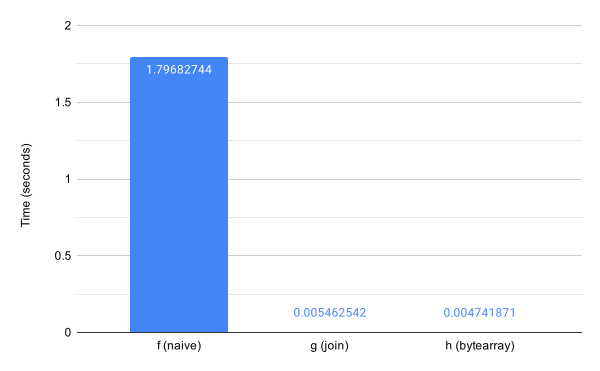
It is known that the naive implementation is very slow, as bytes in Python are an immutable type, hence we need to realloc the bytes and copy them after each concatenation. Just how slow is it? About 330 times slower than the append-and-join pattern. The append-and-join pattern was a popular (and efficient) way to concatenate strings in old Python versions.
def g():
    ret = list()
    for i in range(2**10):
        ret.append(b'a' * 2**10)
    return b''.join(ret)
It relies on the fact that appending to lists is efficient and then ''.join can preallocate the entire needed memory and perform the copy efficiently. As you can see below, it is much more efficient than the naive implementation.
Python 2.6 introduced the bytearray as an efficient mutable bytes sequence. Being mutable allows one to "naively" concatenate the bytearray and achieve great performance, more than 30% faster than the join pattern above.
def h():
    ret = bytearray()
    for i in range(2**10):
        ret += b'a' * 2**10
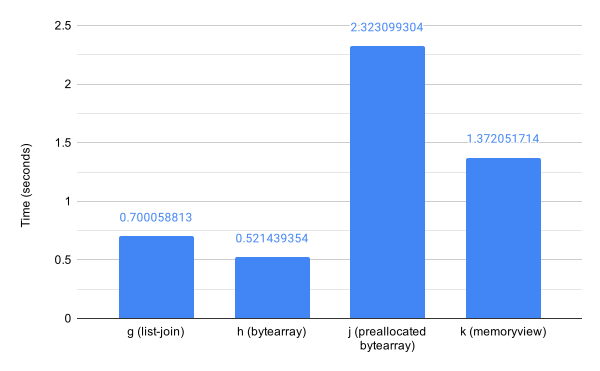
Comparing the naive, join, and bytearray implementations. Time is for 64 iterations.Comparing the join, bytearray, preallocated bytearray, and memoryview implementations. Time is for 8192 iterations.
What about preallocating the memory?
def j():
    ret = bytearray(2**20)
    for i in range(2**10):
        ret[i*2**10:(i+1)*2**10] = b'a' * 2**10
    return ret
While this sounds like a good idea, Python’s copy semantics turn out to be very slow. This resulted in run times 5 times slower. Python also offers memoryview:
memoryview objects allow Python code to access the internal data of an object that supports the buffer protocol without copying.
The idea of accessing the internal data without unnecessary copying sounds great.
def k():
    ret = memoryview(bytearray(2**20))
    for i in range(2**10):
        ret[i*2**10:(i+1)*2**10] = b'a' * 2**10
    return ret
And it does run almost twice as fast as the preallocated bytearray implementation, but still about 2.5 times slower than the simple bytearray implementation.
I ran the benchmark using the timeit module, taking the best run out of five for each. The CPU was an Intel i7-8550U.
import timeit

for m in [f, g, h]:
    print(m, min(timeit.repeat(m, repeat=5, number=2**6)))

for m in [g, h, j, k]:
    print(m, min(timeit.repeat(m, repeat=5, number=2**13)))
Conclusion
The simple bytearray implementation was the fastest method, and it is also as simple as the naive implementation. Also, preallocating doesn’t help, because it looks like Python can’t copy efficiently.
Recently I noticed xdg-open started failing to open links in Firefox, giving me the following error:
Firefox is already running, but is not responding. To open a new window, you must first close the
existing Firefox process, or restart your system.
It happened while I had Firefox running and responding to everything else. I’m running the latest stable Firefox (74 as I’m writing this) on Wayland. Wayland brings a lot of good things, but also a lot of interoperability problems, so I suspected it had something to do with it. Thanks to Martin Stransky, I found out that the solution is to set the MOZ_DBUS_REMOTE environment variable prior to launching Firefox. If you are using a desktop file to launch Firefox, you can set the variable in the Exec line like this:
This post outlines how I backported rtl8812au-dkms from Ubuntu Focal for Debian Buster and added support for the TP-Link Archer T4U v2 card to it. If you are only interested in the resulting .deb file, skip to the end.
The TP-Link Archer T4U v2 is an AC1300 WiFi USB adapter. TP-Link provides drivers, but they are built only for old kernel versions (<=3.19) and do not support DKMS, which makes upgrading a hassle.
Ubuntu provides the rtl8812au-dkms package, which supports the chipset in the Archer T4Uv2, but it doesn’t recognize the TP-Link product. So I set out to backport it to Debian Buster and make it support the Archer T4Uv2.
We start by fetching the rtl8812au source package from Ubuntu.
$ dget --allow-unauthenticated http://archive.ubuntu.com/ubuntu/pool/universe/r/rtl8812au/rtl8812au_4.3.8.12175.20140902+dfsg-0ubuntu12.dsc
$ cd rtl8812au-4.3.8.12175.20140902+dfsg/
$ sed -i s/dh-modaliases// debian/control
$ sed -i s/,modaliases// debian/rules
$ mk-build-deps ./debian/control --install --root-cmd sudo --remove
The sed lines remove the reference to the dh-modaliases build dependency, which Debian doesn’t have. I’m not really sure why they needed it for this package, but removing it didn’t hurt.
Next, we add a new patch using quilt to support the Archer T4Uv2. We extract the 2357:010d USB vid:pid pair of the adapter using lsusb.
$ quilt push -a
$ quilt new add_archer_t4uv2.patch
$ quilt add os_dep/linux/usb_intf.c
$ vim os_dep/linux/usb_intf.c
The change we’ll be making to os_dep/linux/usb_intf.c is outlined by the following patch:
JetBrains Mono is a new monospace typeface designed to be comfortable to read. It has clear distinctions between the different letters and a relatively high x-height.
The installation instructions were tested on Debian, but they should work on any Linux distribution.
Lensfun provides lens distortion correction for Darktable and other raw processing applications. Version 0.3.95 provides the ability to use the
Adobe Camera Model, and hence use Adobe lens profiles (lcp files). However, lensfun 0.3.95 is not packaged for Debian Buster. Also, Darktable won’t compile against the latest git version of Lensfun, so you must compile and install specifically version 0.3.95 to get ACM support.
We begin by downloading and extracting Lensfun 0.3.95. Lensfun 0.3.95 is not tagged in git, so we have to download the release directly from SourceForge. The release is not available from the GitHub repository.
$ wget https://sourceforge.net/projects/lensfun/files/0.3.95/lensfun-0.3.95.tar.gz
$ tar -xvf lensfun-0.3.95.tar.gz
$ cd lensfun-0.3.95/
Lensfun uses CMake for building and also has CPack enabled. We can use it to build a deb package and install it. This allows easier integration and uninstallation in the future.
$ mkdir build
$ cd build
$ cmake -DCMAKE_BUILD_TYPE=release -DCPACK_BINARY_DEB=ON ../
$ make -j`nproc` && make package
$ sudo apt install ./liblensfun2_0.3.95.0_amd64.deb